
Formulas such as this one are all too commonly found in spreadsheets!.
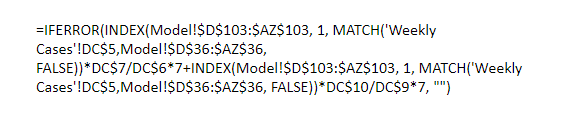
The user has put a complex formula into one cell but it is very difficult to follow and makes the spreadsheet difficult to audit and validate.
Helper Columns are a great way of simplifying your formulas so that:
Each part of the formula is calculated in a separate column (or row). The results of each part are then easily seen, and the links between the parts of the formula can be validated.
Let us look at how Helper Columns can simplify the formula at the start of this post. Start by splitting the formula into its key parts - there should be just one Excel function in each part.
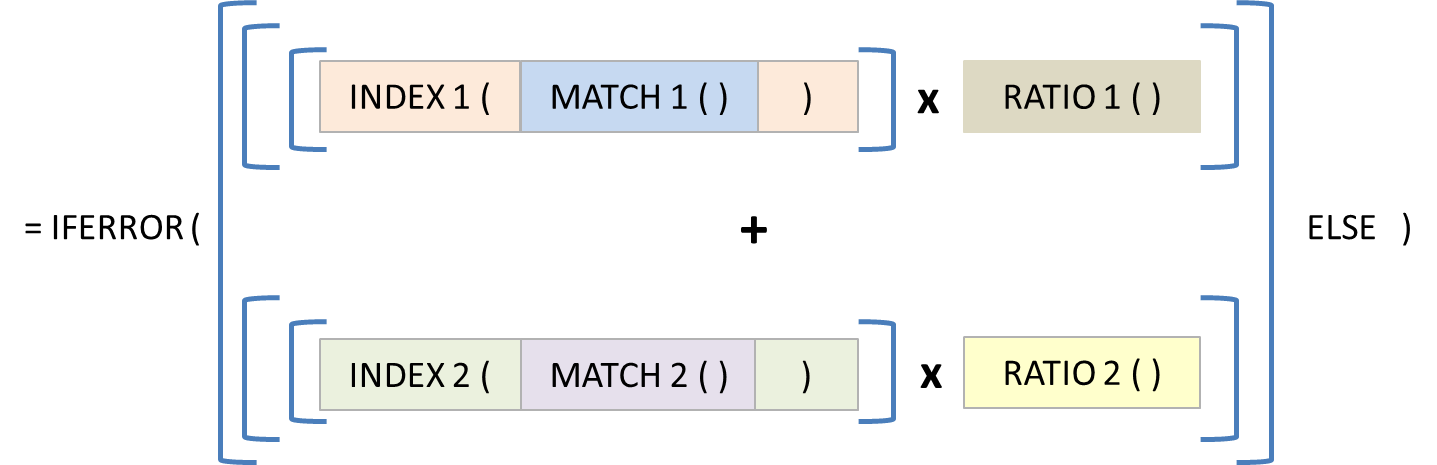
At its simplest the formula is adding two calculated numbers and returning the result. If this result is an error, then the result is blank instead.
Each of the calculated numbers is the result of a value obtained by INDEX-MATCH multiplied by a ratio.
A closer look at the INDEX-MATCH sections shows that they are identical. The formula is actually performing the same sub-routine twice. The DRY (Don't Repeat Yourself) principle should apply even in Excel - if nothing else it helps to reduce processing time.
This means that the original formula can be described even more simply:
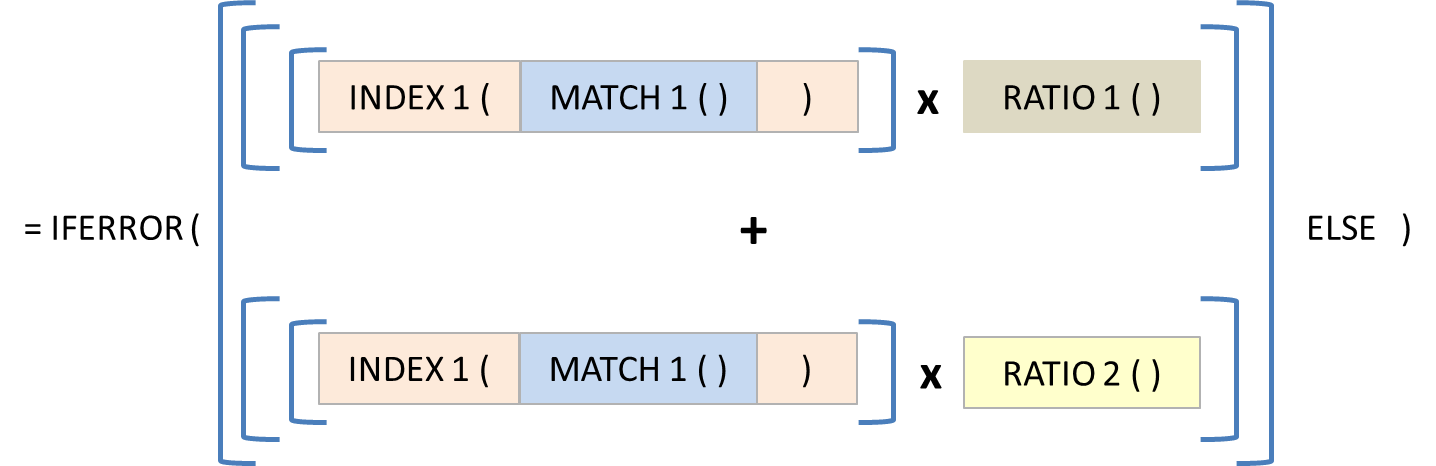
With the formula now simplified to four distinct elements, it should be possible to use four Helper Columns - one for the MATCH value, one for the INDEX result and two for the RATIOs.
The image below shows the new formulas.

These are shown in rows for ease of reading. The MATCH formula in cell D4 is unchanged from the original formula. The INDEX formula in D5 uses the result of D4. The ratios in D6 and D7 are also unchanged.
The Result formula in D8 is now a much simpler expression than the original formula. The final step in D9 is the IFERROR check. Keeping this as a separate step means that errors can still be identified. It is fine to use IFERROR to hide #ERROR messages in output areas, but it is very helpful to understand where and why errors are occurring.
Don't Repeat Yourself also applies in Excel - avoid repeating the same calculation!
If you have more than one function in a formula then it is time to think about using Helper Columns.